
If a website suddenly stops accepting your login in Google Chrome on a Mac, the problem may not be your password or your account.
We recently helped a customer who could no longer sign in to her Target account using Chrome. The change was alarming because the login had worked previously, and it led her to uninstall Chrome before contacting Daytona Beach Computer Repair.
First, test the same login in Safari
Before changing settings or resetting your password, open Safari and try signing in to the same website. In this case, the customer could log in successfully through Safari. That confirmed three important things:
- The username and password were correct.
- The customer’s account was still active.
- The problem was limited to Chrome rather than the website or account.
The setting that resolved the problem
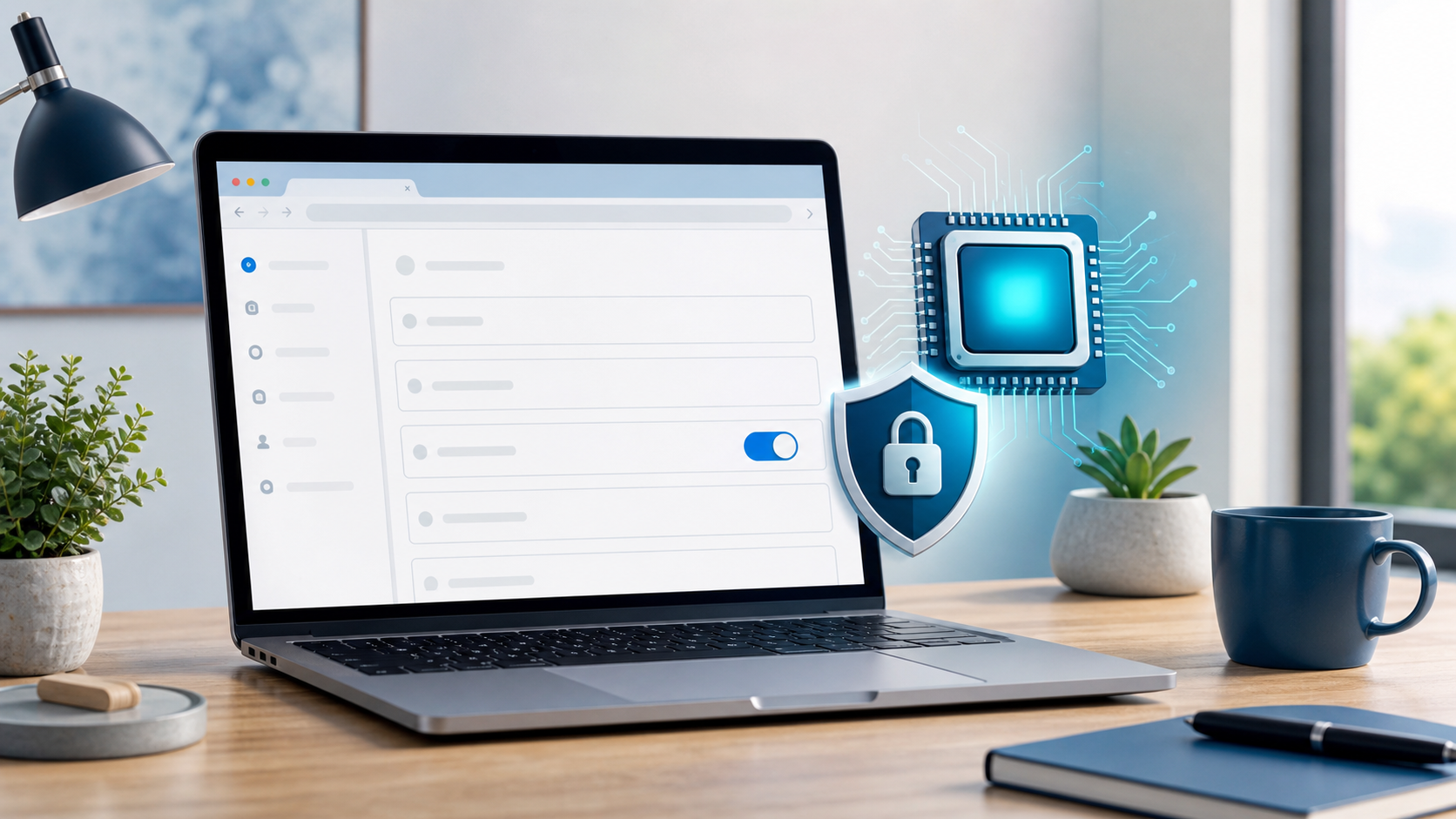
Chrome was not using the Mac’s graphics processor, or GPU, even though graphics acceleration had not intentionally been disabled. After graphics acceleration was refreshed and Chrome was relaunched, the customer could sign in again.
How to enable graphics acceleration in Chrome on a Mac
- Open Google Chrome.
- Enter
chrome://settings/systemin the address bar and press Return. - Turn on Use graphics acceleration when available.
- Select Relaunch to restart Chrome.
- Return to the website and try signing in again.
If the setting is already on
Turn the setting off and relaunch Chrome. Then return to the same setting, turn it back on, and relaunch Chrome once more. This refresh can help when the switch appears enabled but Chrome is not actually using the GPU as expected.
Why can this affect a login?
Graphics acceleration allows Chrome to use your Mac’s GPU when displaying and processing website content. Modern websites can evaluate many characteristics of a browser session for compatibility and security. We have not confirmed that Target made a specific security change, so we do not claim that graphics acceleration is a formal Target requirement. We can confirm only that refreshing this Chrome setting resolved the login problem for our customer.
If you still cannot sign in
- Make sure Chrome is updated.
- Try an Incognito window to rule out an extension or stored browser data.
- Test the login in Safari.
- Avoid repeated password resets if the same credentials work in another browser.
- Contact Daytona Beach Computer Repair for help narrowing down the cause.
Need help with your Mac or browser? Daytona Beach Computer Repair can diagnose browser problems, account-access issues, and other Mac or PC concerns.